

Most creators generate at a lower resolution to save credits, then upscale only the cuts worth keeping. The obvious move is to pick the biggest settings on the upscaler’s menu. On AI footage those are exactly the settings that give it away. More pixels and more frames do not only sharpen the detail you want; they also resolve the artefacts the softer version was hiding.
Two upscalers lead our list in November 2026: Topaz Starlight Precise 2.6 and FLUX Video Upscale. Both are recent, both have a mode built to keep the source instead of reinventing it, and both can be bought per second with no subscription. That is our judgement, not a ranked test: we have run Topaz on our own clip, shown below, and have not yet run FLUX. Findings from other people’s tests are marked as reported.
The two upscalers to try first
- Topaz Starlight Precise 2.6 came out in August 2026. Topaz aims it at generated footage with solid composition that still looks soft or plastic, with a focus on faces, skin, textures and text. It has a five-step sharpness control, shown on fal as softness, where 5 is the softest. It takes sources up to 4K, outputs up to 4K, and Topaz says sources below 480p are not ideal. You can run it in the Topaz Video desktop app, in Topaz’s Astra web app, or through fal’s API.
- FLUX Video Upscale came out in August 2026 from Black Forest Labs. It enlarges a clip 1.5× to 3× and has two modes. Precise preserves the source and sharpens it; Creative invents fine detail, and its documentation warns that faces and products can drift. Black Forest Labs says to use Precise when identity matters. You can buy it from Black Forest Labs directly or through fal.
Two Topaz modes, two different jobs
Precise models (Starlight, Proteus, Iris, Rhea, Nyx) keep what is in the frame: they remove noise and compression blocks, sharpen edges and restore detail, staying faithful to the source. Creative models (Astra 1 and Astra 2) generate detail that was never there.
The name causes confusion. Astra is both Topaz’s browser app and the name of those two Creative models, and the same app also runs the Precise models. So a guide that says “Astra Precise 2.5” usually means Starlight Precise 2.5 running in Astra.
That difference decides the result. In published tests on an AI-generated animated short, which we did not repeat, Proteus v4 made the picture much sharper and the existing flaws far more noticeable with it. Starlight Precise 2.5 sharpened the characters, kept the background in a light haze and made the motion smoother without a plasticine look. It was reported as the best of the four tried.
Start Precise, add creativity on purpose
Topaz’s own advice is short: use Precise for realistic results, Creative for intentional stylistic changes, start from the defaults, and avoid excessive sharpening. Two reported tests, which we did not repeat, show why:
- Precise keeps the clip as close to the original as possible. It is the mode to start with, and it did well on both a realistic advert and an animated one.
- Creative adds and stylises. At maximum strength on a realistic close-up of a woman’s face, the clip turned almost fairy-tale-like and slightly blurry, small details became overstated, and the face distorted in many frames. On an animated clip (a samurai cat in a bamboo forest) the same mode was fine: richer detail, softer light, a few distorted frames.
So Creative belongs to stylised or animated sources, at low creativity, and mainly when the source looks plastic and uniform to begin with. On a real face, or a realistic generated one, use a Precise model. FLUX Video Upscale splits the same way.
The 4K and 60 fps trap
Reported tests point the same way. Upscaling an animated clip to 4K made its AI origin more apparent, and going to 60 fps can bring out flaws that are already there.
For a vertical reel that will be watched on a phone, 1080p at the source frame rate is the sensible ceiling. Push past it only after comparing a 1:1 crop of the faces and the fine texture against the source - the same check we use for every restyle before calling it done.
Check the real frame rate before you upload, too. Our downloaded clip was tagged 60 fps but held only 24 frames per second. Topaz’s prices on fal double at 60 fps, so we converted it to 24 fps first.
Which to pick
| What you have | Start with | Then try | Avoid |
|---|---|---|---|
| Camera footage, old or compressed video | Topaz Proteus | Iris if faces matter; Nyx for noise and grain | Astra Creative |
| Realistic AI-generated clip | Topaz Starlight Precise 2.6, softest setting, 1080p | FLUX Video Upscale, Precise | Creative at high strength, 4K, 60 fps |
| Animated or CGI clip | Topaz Starlight Precise 2.6 | Topaz Gaia CG; Astra Creative at low strength | Proteus, which sharpens the flaws too |
| Footage that is already good, AI or not, and only needs resolution | Topaz Gaia HQ | FLUX Video Upscale, Precise | Heavy sharpening |
Starting values for Topaz Proteus
There is no universal setting. One published combination, which we have not measured, aims to improve most footage without overdoing any one parameter: Fix Compression 8, Improve Detail 60, Sharpen 50, Reduce Noise 70, Dehalo 8 and Anti-alias/Deblur −30. Raising the frame rate to 60 is for camera footage; for AI footage, leave it.
Limits
- FLUX Video Upscale takes MP4 clips of at most 20 seconds, 50 MB and 2560 × 1440. Longer cuts go in pieces.
- Topaz warns that heavy motion blur can be rendered as texture in Starlight Precise, and that very poor sources are not a good fit.
- Running Starlight Precise on your own machine needs at least 12 GB of graphics memory and 32 GB of RAM on a PC, or 16 GB on a Mac, and Topaz warns of long renders.
- Starlight Fast 2 is built for speed and volume. It is not what our comparison used.
What it costs
Prices below are standard list prices for a 5-second clip at 1080p, so the rows compare directly. The per-second services charge only for what they deliver. Topaz Video on the desktop is $59 a month with unlimited local renders, if your machine can run it.
| Upscaler and mode | Where | 5 seconds |
|---|---|---|
| Topaz Proteus | fal | $0.10 |
| Topaz Starlight Fast 2 | fal | $0.30 |
| Topaz Starlight Precise 2.6 | Topaz web plan, $29 for 200 credits | about $0.36 |
| FLUX Video Upscale, Precise | fal | $0.42 |
| Topaz Starlight Precise 2.6 | fal | $0.60 |
| FLUX Video Upscale, Creative | fal | $0.60 |
| FLUX Video Upscale, Precise | Black Forest Labs | about $0.69 |
| FLUX Video Upscale, Creative | Black Forest Labs | about $0.99 |
| Topaz Astra 2 | fal | $1.50 |
Three upscales from our own projects
These are matching frames from the actual input and output videos, shown at the same display size, or as videos at matching moments. The book pair preserves the full outdoor shot within the montage; the talking-head pair preserves the complete portrait frame. The source is resized to the output canvas, so a larger image alone cannot make the after look better. The book frames match 00:39.76 in the edited source with 00:39.90 in the assembled output.
Topaz Starlight Precise 2.6: a 15-second Seedance clip through fal
The source is a 15-second Seedance 2.0 Fast clip at 720 × 1280 from a reel shot on a miniature set. We ran it through fal with Starlight Precise 2.6, softness 5 and a 1.5× factor. The output is 1080 × 1920 at the same 24 fps, and at list price the whole clip costs $1.80. Both videos show its last 10 seconds, without sound.
Video at this size hides what matters most, so here are two moments at close to full size.
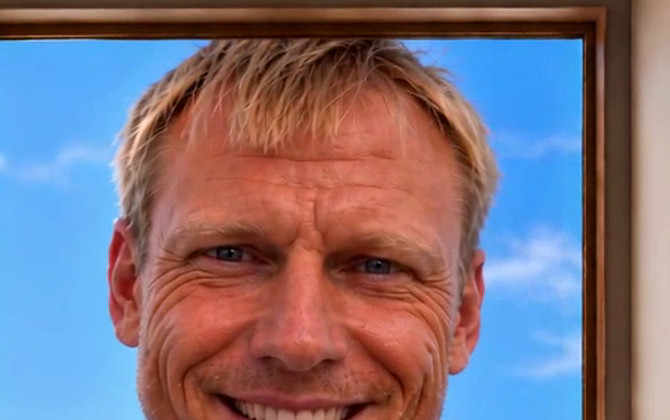
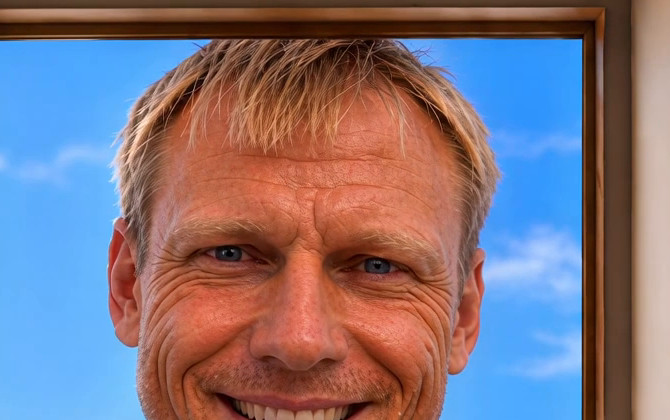
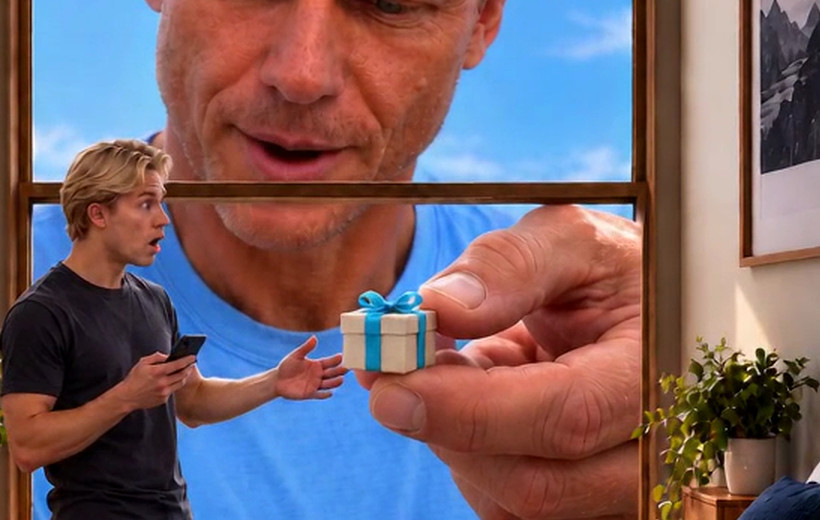
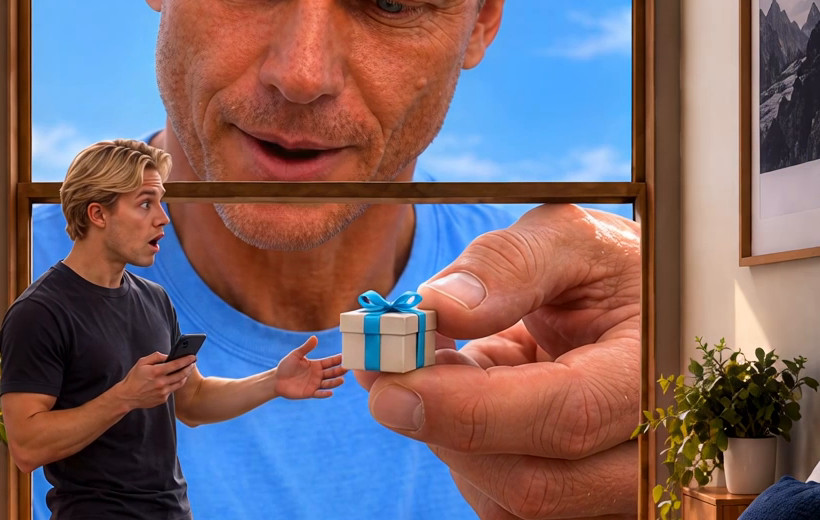
Both people stay the same, the emblem on the phone stays recognisable, and frame-to-frame change stays in line with the source across all 361 frames, so the extra detail does not visibly boil in the frames we measured. The texture is still reconstructed: the smile lines are deeper than the 720p version shows, and the giant thumb picks up a slightly wet highlight.
An earlier test shows how quickly this can go wrong. On a 480p take of the same scene at softness 3, the same model added deep wrinkles and pebbled skin to the giant’s face, opened his eyes further, and damaged the emblem’s eye patch and tongue. We changed both the source resolution and the softness between the two tests, so we cannot say how much each one mattered. We would give it a 720p source and the softest setting first.
Another upscaling option: the Higgsfield UI
After the book replacements, the montage still had soft faces, hair and cover detail. We split it into short segments, enhanced them through Higgsfield’s UI, and assembled the 1080p Pro outputs into the finished film. The face, hair, tree emblem and surrounding foliage are more defined after the pass. Fine cover lettering is still unreliable: sharper does not automatically mean faithful.
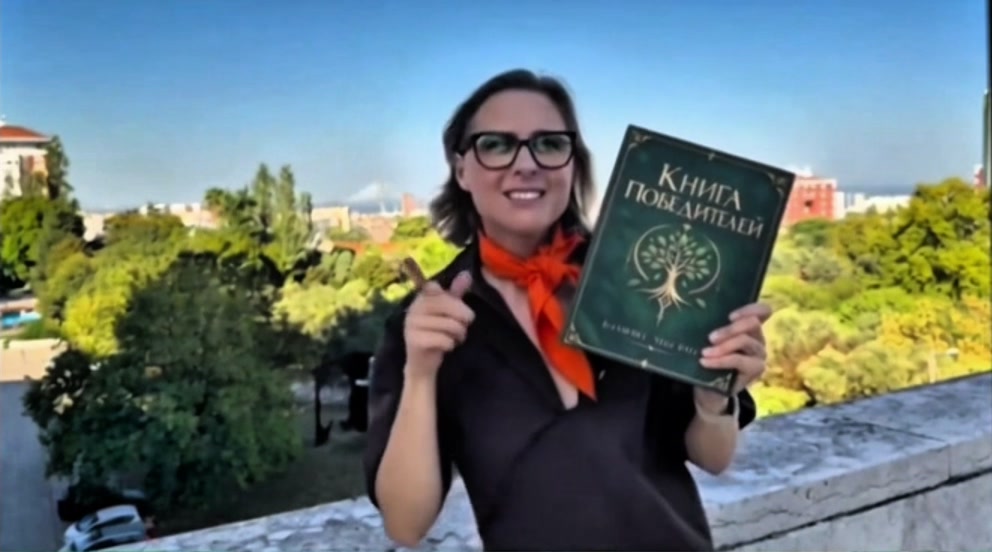
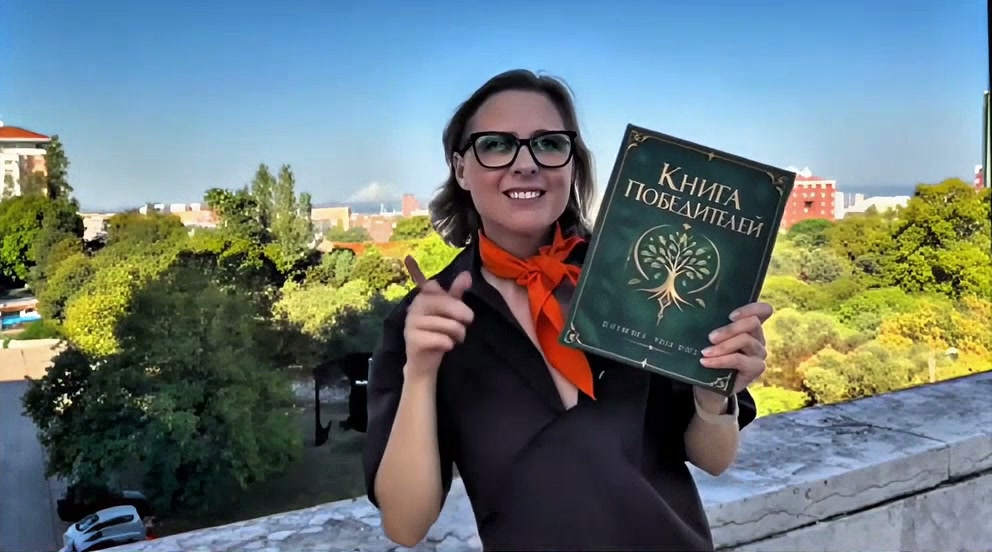
The input was already exported in a 4K container, but its smaller inserts were still soft. This example shows enhancement of that detail, rather than an increase in the master’s pixel count. The saved outputs identify the Pro pass; the exact engine selected in the UI was not recorded.
ByteDance Video Upscale: a talking-head clip through the API
Higgsfield also offers ByteDance Video Upscale, with Standard and Pro versions and presets for different footage types. This is another enhancement tool to compare with Topaz and FLUX.
For a talking-head regeneration, Claude submitted the five-second Genjutsu result through Higgsfield’s tool API with Pro quality, the AI-generated-footage preset, 1080p, and 24 fps. The saved input is 720 × 1280; the output is 1080 × 1920 and keeps the same 24 fps and duration. The full frames below show the face, hair, jacket and room together.
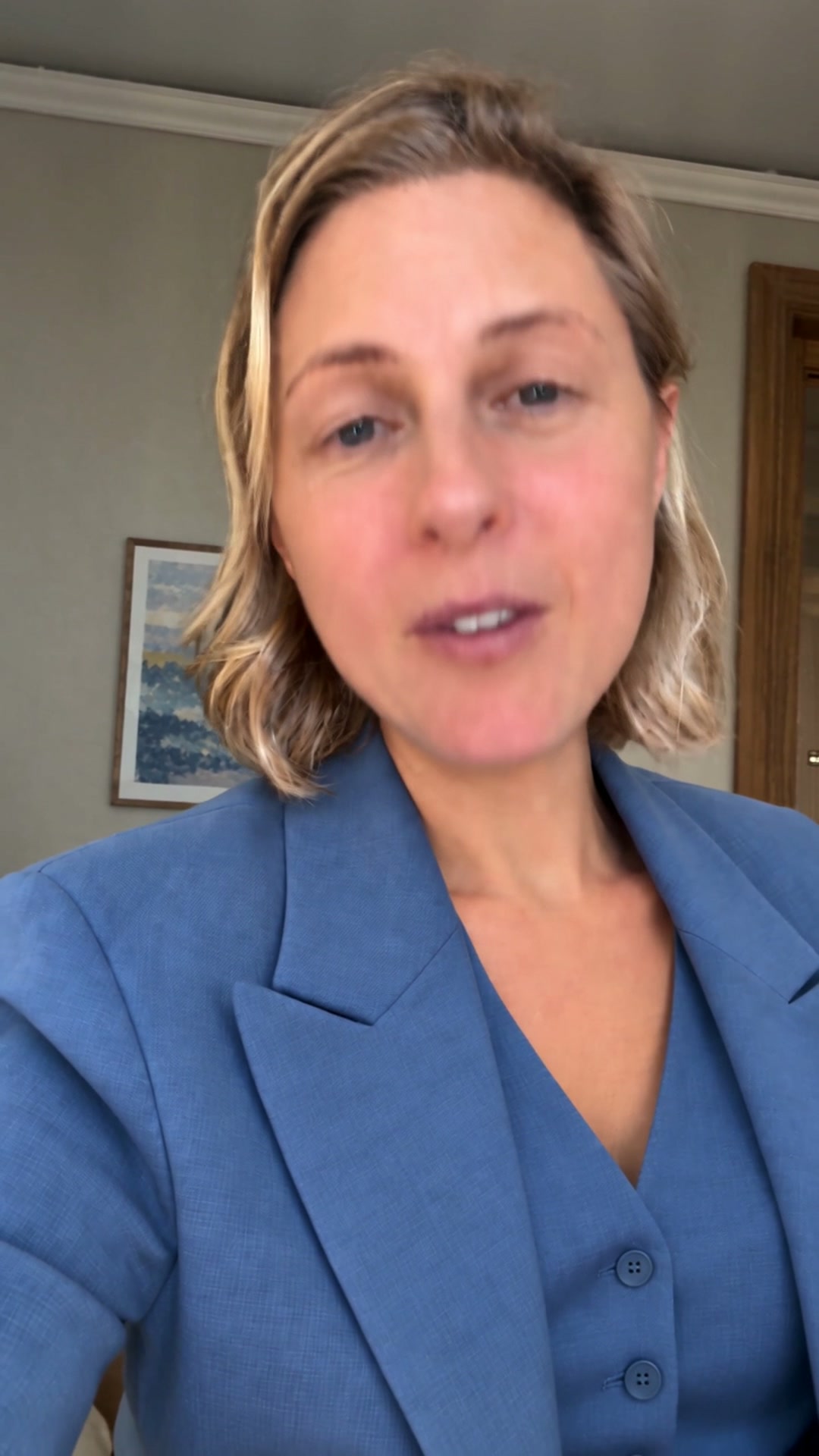
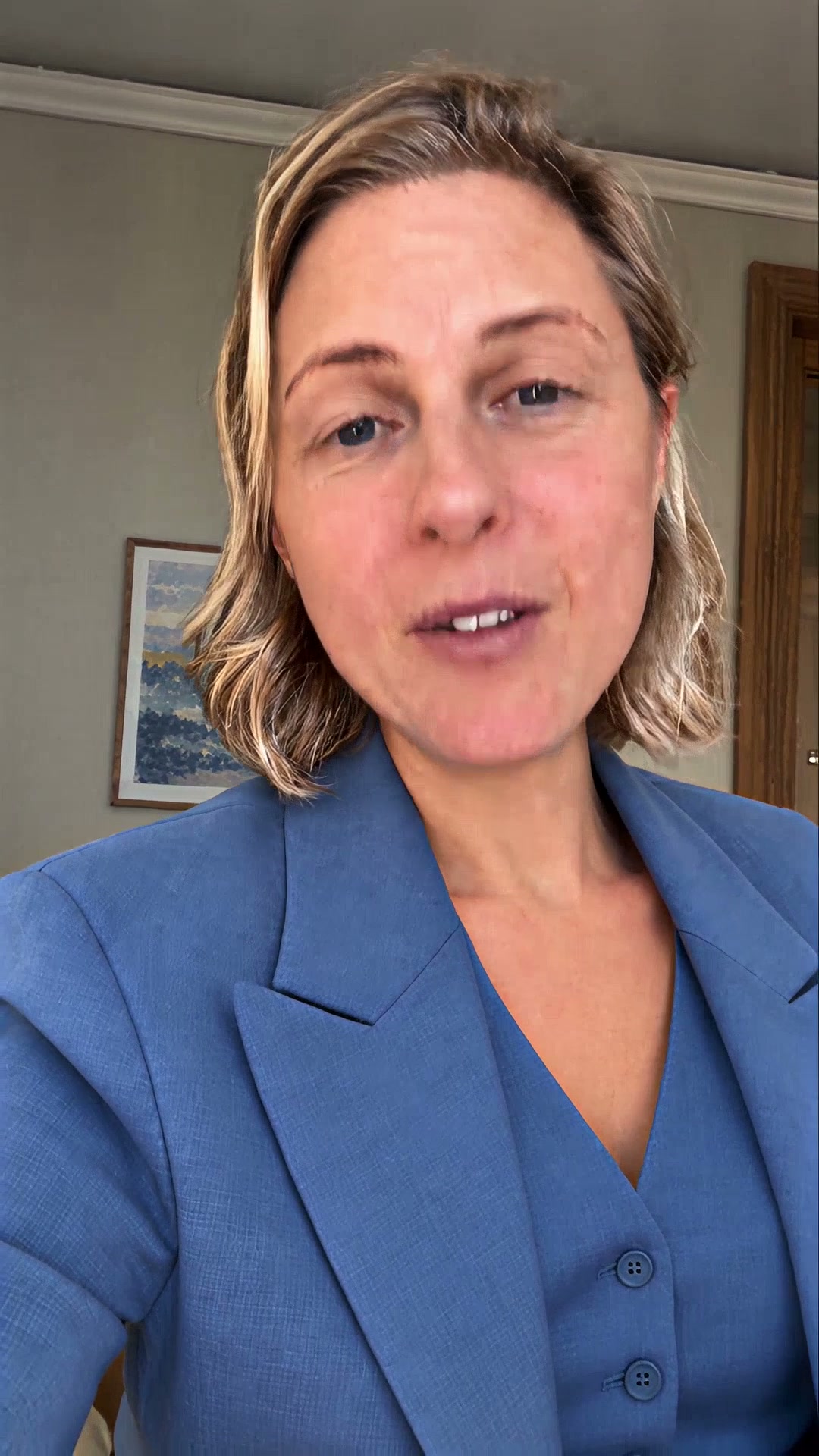
The result adds visible texture, but that texture is reconstructed, not proof that the source contained it. It also keeps the room and blazer from the Genjutsu edit; enhancement cannot fix an earlier edit that changed the wrong thing. The talking-head comparison shows that separate problem.
Before keeping an upscale
An upscale is one line in the cost of a 30-second video, and a good reason to get the footage right first, with edits made before polish.
- Decide what the clip is: camera footage, realistic AI or animation. That picks the tool, not the brand name.
- Start with restrained settings - Proteus for camera footage, Starlight Precise 2.6 at its softest for AI footage, or FLUX Video Upscale in Precise mode. ByteDance Pro with the AI-generated preset is another option, as the talking-head example shows.
- Stay at 1080p and the source frame rate for a reel.
- Crop the faces and the finest texture at 1:1 against the source. If the upscale invented skin, hair or text, go back a step rather than forward.
Sources
- Topaz Starlight Precise 2.6: what the model is for and where it runs
- Topaz Video 1.7.0 release notes: source limits and hardware for Starlight Precise 2.6
- Topaz modes and models: Precise and Creative, and Astra 1 and 2
- Topaz web plans and credits and Topaz pricing
- FLUX Video Upscale documentation and Black Forest Labs release notes: modes, limits and rates
- fal price pages for Topaz Starlight, Topaz Proteus, Topaz Astra 2 and FLUX Video Upscale
- Higgsfield AI Video Upscaler: ByteDance and Topaz engines, footage presets, and Standard/Pro options
Polish without the giveaway
Enhancement is one step in a workflow, not a button. easyai.video picks the step by what the footage is, and checks the faces before anything is kept.
Join the waitlist ↗